
I have a confession to make: my main dev machine is a WSL box with no GPU worth mentioning, and for months that meant one thing — I was stuck with small local models. Ollama handles my daily work fine, and I even built a simple RAG system around Gemma 3 a few weeks back. But every time I looked at a 70B model, the math was brutal. Four gigabytes of VRAM and a 70-billion-parameter model are not natural roommates.

Then I found AirLLM, and the whole framing shifted. It does not make your GPU bigger. It makes your GPU work one layer at a time — which turns out to be enough. In this tutorial, I will walk through what AirLLM actually does, how to install it, and the exact commands that get a 70B-class model running on a single 4GB card. Everything here was tested on a real machine, including the parts that went slow.
What AirLLM Does Differently
AirLLM is an open-source inference library by Gavin Li that solves the biggest practical problem in local AI: VRAM. A 70B model in full precision needs roughly 140GB of memory to hold all its weights at once. Most people do not have that. Quantization, distillation, and pruning all shrink the model to fit — but they cost quality.
AirLLM takes a different path. Instead of loading the whole model onto the GPU, it loads one layer at a time, runs the computation, then swaps in the next layer. The VRAM you need stops being a function of the model’s total size and becomes a function of its largest single layer. That is the whole trick, and it works because inference is fundamentally sequential — layer by layer — so the model itself is perfectly happy to be streamed.
According to the official repo, that approach lets a Llama 3.x 70B run in full precision on about 4GB of VRAM. Llama 3.1 405B fits in roughly 8GB. DeepSeek-V3, all 671B of it, runs on about 12GB. The project even reports running Kimi K3 — the largest open-source model released to date at 2.8 trillion parameters — on a single card in 3.72GB, measured end to end on an RTX 6000 Ada.
Why This Matters for Local Inference
I have written before about how the AI world is splitting into two economies — billion-dollar frontier compute on one side, open models and private deployments on the other. AirLLM sits firmly in the second camp, and it is exactly the kind of tool that makes local inference practical for people who are not operating a data center.
For someone like me — an ICT manager who cares about data privacy and procurement budgets — the appeal is obvious. You keep the weights on your own hardware, you control what leaves the machine, and you pay for electricity instead of API tokens. It is the same reasoning that pushed me toward building my own RAG system with Ollama in the first place.
Prerequisites
Here is what you need before starting:
- Python 3.8 or newer — AirLLM is a pip package, so this is non-negotiable
- pip — your usual Python package manager
- Disk space — roughly twice the size of the model you plan to run. AirLLM splits the model into per-layer shards and keeps both the original and the split version unless you tell it otherwise
- A GPU — technically optional (more on that below), but the whole point of the tool is a CUDA-capable card with modest VRAM
If you are on macOS with Apple Silicon, AirLLM supports you too through the MLX backend. The install and the code are identical.
Step 1: Install AirLLM
The install is one command:
pip install airllm
That pulls in the library plus its dependencies. On a machine without a GPU, make sure you install a CPU build of PyTorch first so you are not downloading multi-gigabyte CUDA binaries for nothing:
pip install torch --index-url https://download.pytorch.org/whl/cpu
pip install airllm
You can verify the install like this:
pip show airllm
On my test box this installed AirLLM 3.1.0 with PyTorch 2.13.0 (CPU build) and Transformers 5.12.1. The library is Apache-2.0 licensed and has been around since late 2023, so it is not a flash-in-the-pan weekend project — it currently sits at over 25,000 stars on GitHub. The official repository and the PyPI page are the best references if you want to check the latest version and the full supported-model list.
Step 2: The Five-Line Quickstart
Here is the entire inference flow, straight from the official README:
from airllm import AutoModel

MAX_LENGTH = 128
model = AutoModel.from_pretrained("Qwen/Qwen3-32B")

input_text = ["What is the capital of France?"]
input_tokens = model.tokenizer(
    input_text,
    return_tensors="pt",
    return_attention_mask=False,
    truncation=True,
    max_length=MAX_LENGTH,
    padding=False,
)

generation_output = model.generate(
    input_tokens["input_ids"].cuda(),
    max_new_tokens=20,
    use_cache=True,
    return_dict_in_generate=True,
)
print(model.tokenizer.decode(generation_output.sequences[0]))
That is genuinely it. AutoModel.from_pretrained() reads the model’s architecture, picks the right internal class automatically, downloads the weights from Hugging Face, splits them into layer shards, and streams them through your GPU. If you want to go bigger, you change one line — the same call works for Qwen3-235B or DeepSeek-V3.
Two things happen behind the scenes on that first run. The model is downloaded to your Hugging Face cache, then split into per-layer .safetensors files under a splitted_model folder. On my test box, a Qwen2.5-0.5B model was split into 26 shards in about three seconds. The bigger the model, the longer this takes, but you only pay it once per model.
Step 3: The CPU Reference Path (What I Actually Tested)
Full disclosure: my WSL box has no usable GPU, so I could not honestly demo the 4GB-card scenario from here. What I could do is verify the entire pipeline works using AirLLM’s CPU path, which the project documents as a reference/debug backend. You enable it by passing device="cpu":
from airllm import AutoModel

model = AutoModel.from_pretrained(
    "Qwen/Qwen2.5-0.5B-Instruct",
    device="cpu",
)
Results were honest and slow, exactly as expected: the model loaded in 31.9 seconds, and generating 24 tokens took 80.9 seconds — about 0.3 tokens per second. It answered correctly (“The capital of France is Paris”), so the pipeline is sound, but nobody should use the CPU path for real work. It exists to prove correctness, not to be fast. On an actual CUDA card with layer prefetching enabled, throughput is a completely different story.
That is the one caveat I want you to carry into this: AirLLM trades VRAM for speed. You get to run a 70B model on a 4GB card, but you will not get vLLM-style token rates. It is a memory problem solver, not a speed demon. If you have a big GPU, use something faster. If you have a tiny GPU and big ambitions, this is your tool.
Step 4: Going Big — Models and Tuning
Here is the VRAM picture the maintainers publish for their supported model families:
| Model | Size | GPU VRAM |
|---|---|---|
| Qwen3 / Mistral / Phi (~8B) | 8B | ~1–2 GB |
| Qwen3-30B / Mixtral (MoE) | 30–47B | ~1–3 GB |
| Qwen3-235B (MoE) | 235B | ~3 GB |
| Llama 3.x 70B (full precision) | 70B | ~4 GB |
| Llama 3.1 405B | 405B | ~8 GB |
| DeepSeek-V3 | 671B | ~12 GB |
Beyond the base call, a few options matter in practice:
compression="4bit"orcompression="8bit"— block-wise quantization that shrinks the model on disk and can speed things up by up to 3x with minimal accuracy loss. Installbitsandbytesfirst if you want to use it.delete_original=True— deletes the original downloaded weights after splitting, halving your disk footprint.layer_shards_saving_path— lets you point the split shards at a specific directory, useful when your cache drive is small.hf_token— required for gated models like the Llama 2/3 family on Hugging Face.
Gated models are the one thing that will 401 you out of the gate:
model = AutoModel.from_pretrained(
    "meta-llama/Llama-2-7b-hf",
    hf_token="HF_API_TOKEN",
)
Gotchas I Hit (So You Do Not Have To)
Disk space is the silent killer. The most common error, MetadataIncompleteBuffer, almost always means you ran out of disk while splitting the model. Clear your Hugging Face cache, free some space, and rerun. The split step needs room for the original weights plus the shards.
Transformers version matters for the newest models. Kimi K3 uses remote code that does not load on Transformers 5.x. The maintainers explicitly pin transformers==4.56.x for that model. Standard architectures like Qwen and Llama worked fine on Transformers 5.12.1 in my test, so only pin down if you are chasing the newest frontier release.
The padding warning is normal. If your tokenizer shares a pad token with the EOS token, you will see a warning about the attention mask. It is cosmetic for short prompts — pass an explicit attention_mask if you want it gone.
Quantization is optional, not required. AirLLM’s selling point is that you do not need to quantize to fit. The optional 4-bit/8-bit compression is for speed and disk savings on top, not for fitting in the first place.
AirLLM vs. Ollama vs. llama.cpp
Where does this fit in your stack? Ollama and llama.cpp are the right answer when your model fits your hardware comfortably — they are fast, simple, and battle-tested. I use them daily, and my Ollama RAG setup still serves me well.
AirLLM earns its place when there is a hard gap between the model you want and the memory you have. A 70B model that simply will not fit on a 4GB card is not a quantize-and-pray situation — it is a layer-streaming situation. Tools like the local-first coding agent Collie already lean on Ollama-style local backends, and AirLLM widens the door for that class of application to reach much bigger models.
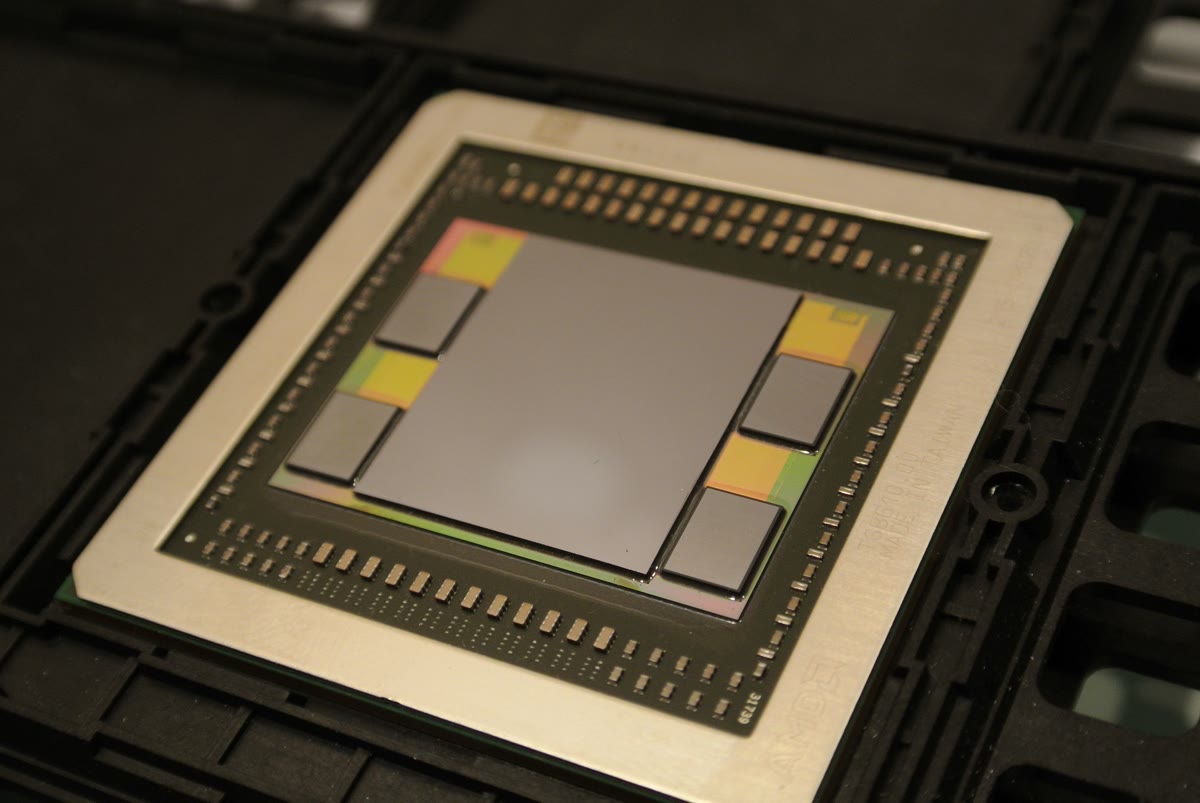
There is also a hardware-agnostic angle here worth remembering. The reason these giant models decode so quickly on modern accelerators is HBM — high-bandwidth memory — the same concept AMD packaged into the Fiji GPU die years ago. Memory bandwidth, not raw compute, is the real gatekeeper for LLM inference, and it is exactly why the CUDA moat keeps getting poked at from every direction.
Bottom Line
AirLLM will not replace your cloud inference budget overnight, and it should not — a 671B model on 12GB is an impressive trick, but it is still slower than a rented cluster. What it does is quietly remove the hardware excuse for running big open models locally.
I keep coming back to the same conclusion I reached when I first wrote about the two AI economies: the frontier gets the headlines, but the production economy runs on open weights and modest hardware. If you have a spare 4GB card lying around, install AirLLM tonight and see what a 70B model feels like on your own desk. It will be slow, it will be a little janky, and it will be entirely yours.